Decisions that never made it onto
the feature list.
every one a choice made, a path abandoned,
something done and then undone.
This chapter is VAS's craft confession:
Making the tool more than a tool.
The breathing light reads your intent — then asks
VAS's breathing light isn't just a symbol of waiting — it's sensing the environment. When a user copies a URL nearby, the light gently asks: "Want me to capture this webpage?" User confirms, screenshot taken, editor opens.
And when a user drags an image or copies one from a browser toward the breathing light, the light opens up like welcoming arms — expanding the toolbar to receive the image or, after a quick confirmation, immediately launching the editor for whatever comes next.
The reverse holds too — when you want to send an image out, the editor folds itself into a single black breathing light, twin to the white one that received it: white to receive, black to step aside. No saving, no folder picking, no folder reopening — press, drag, and the image lands directly into the AI below, the desktop, or any folder you like. Two seconds is plenty; thirty seconds at most before any nudge — across screens, across resolutions, it follows you. Only after you let go does it bloom back into the editor.
The best tools don't make you switch into "tool mode." They live in your environment, read what you're doing — present when needed, gone when not.
* Breathing-light webpage capture, copied-image opening, and drag-to-export step-aside are Tauri-exclusive features. The Electron version offers only image pickup via the toolbar.
No perfect human-AI pair — but a complete collaboration
VAS automatically detects sensitive text on screen and marks areas to be hidden. But during development we found OCR still has inherent limits — occasionally missing or misreading content. We simply chose not to keep pushing for a perfect tool.
I wanted recognition errors to be more than just a tool failure — to become a handoff point for collaboration.
We made the privacy mosaic a floating layer with adjustable size: wherever OCR falls short, the user steps in manually.
A recognition error stops being a "mistake" — it becomes a division of labour. The tool's imperfection leaves the user's control intact.
OCR may only automate 90% of the task — but a quick drag of the manual mosaic handles what would otherwise be 100% manual work.
And if you cover the wrong area, no problem — mosaics are independent floating objects, deleted with a single undo. Nothing is irreversible.
QR Code detected — but how confident is it?
Scanning a QR code seems like a binary outcome — found or not found. But VAS sees it differently: it reads user intent, then decides what to do next based on that intent.
This is also human-AI collaboration: the user speaks through how they frame the screenshot, and the tool understands. No language, no buttons, no menus — how you frame it is what you want. The tool isn't reading commands; it's reading behaviour.
We reasoned that when a user wants accurate QR Code detection, they'll naturally frame it as completely and exclusively as possible within the selection box — that act itself is a declaration of intent. The larger the QR Code fills the selected area, the more accurate the recognition, the higher the confidence, and the more directly the tool can act. A wordless understanding forms between user and tool.
A tool shouldn't pretend to be certain when it isn't. When intent is clear, it opens the link directly; when confidence is ambiguous, it asks if you'd like to open it; when confidence is too low, it silently opens the editor and hands over to you. Behind each threshold is an honest design: knowing how much it knows.
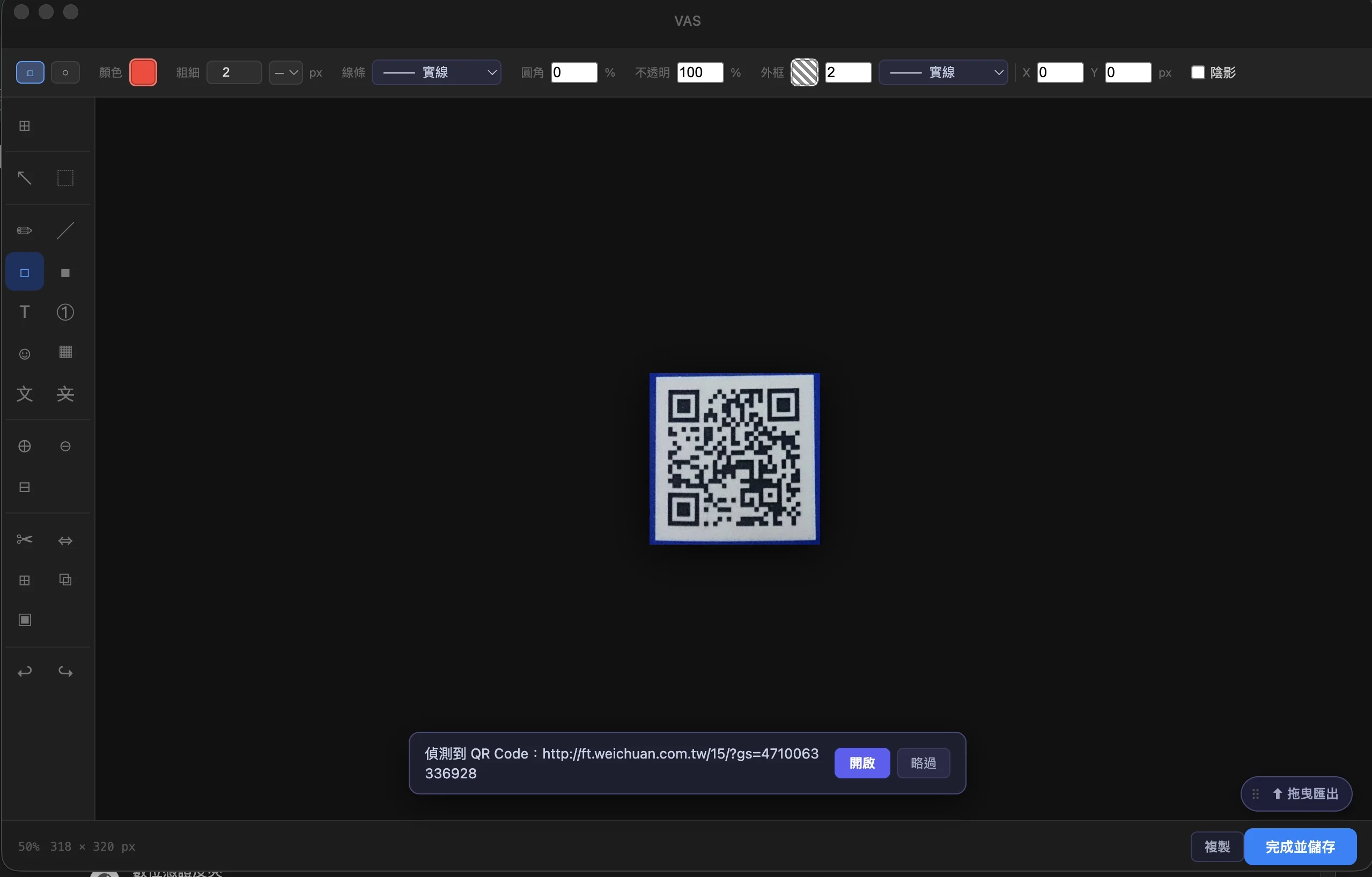
Strike your pose and hold — the tool should not call you back to choose
Once we built Delay Capture, the native Apple screen-picker for fullscreen captures in dual-monitor mode became friction.
Delay Capture was born to catch mouse events — error states, hover effects, debug moments. While the countdown runs, the mouse must stay in its corner of the screen.
But once the countdown ends, the native dual-monitor picker pops up and forces the user back to choose a screen before capturing — like setting a self-timer for a selfie, only for the camera to ask "which side do you want?" when it finishes counting down.
VAS replaces the native Apple screen-picker with a custom fullscreen overlay: no delay — click whichever screen to capture it, or press Enter to merge both screens into one screenshot.
Going further: when a user sets a delay rule, VAS defaults to capturing whichever screen the mouse is currently on — no selection needed at all. The user never even knows this decision happened in the background.
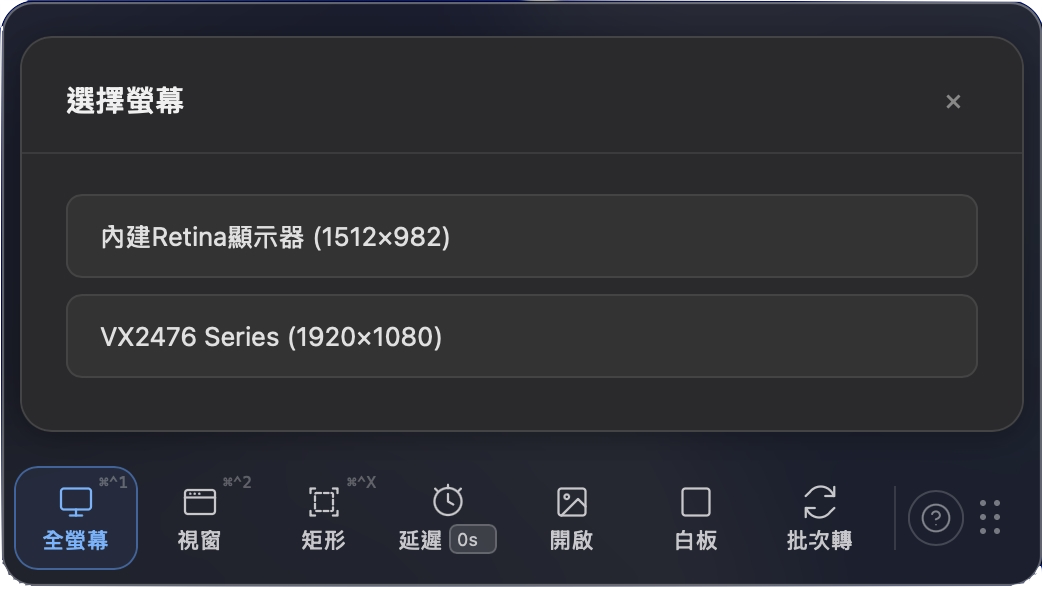
the camera waits for you to strike a pose, counts down, then asks which side you want to shoot.
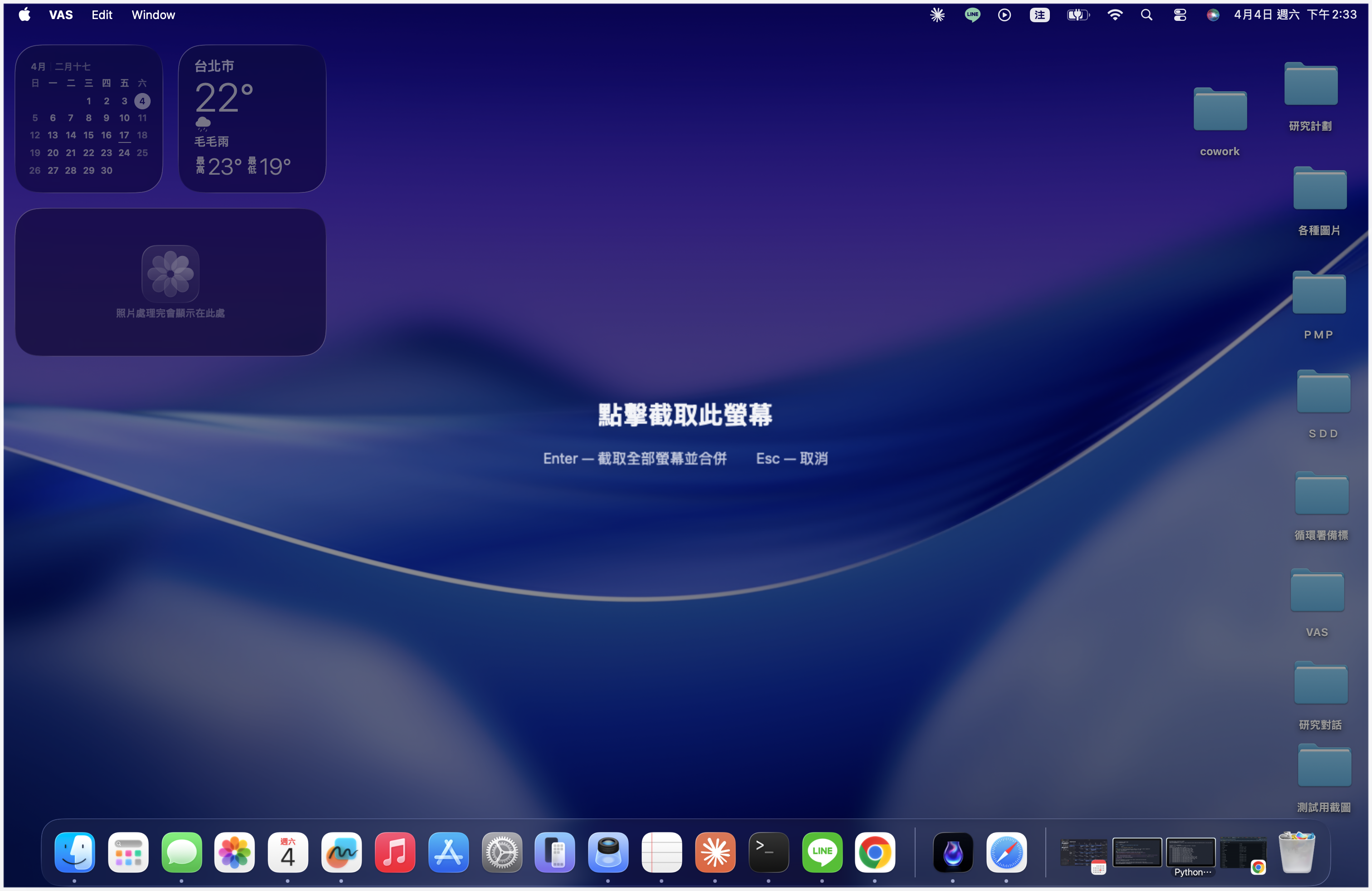
delay mode — no selection needed, wherever you are is where it captures.
Features can keep growing — but the foundation must speak one language first
As tool types multiply — points, lines, surfaces, text, symbols — each object carries colour, stroke, size, and direction properties. Stacked and duplicated, those properties become invisible tech debt: the features work, but the structure is cobbled together.
They made the call at the Sprint 9 Retro. While waiting for the App Store review, they estimated: four Sprints should be enough.
Nobody expected four Sprints to become seventeen. Not because the direction was wrong — but because every layer of debt, once paid, revealed another underneath. At Sprint 20, when Nova was nearly breaking under the exhaustion of manual QC and finally asked "why am I still this tired when we have automated tests?", they realised: the test architecture itself was part of the debt. Then a user asked for Simplified Chinese. Looking at the i18n structure, they said — this can't support another language — and another round began. At Sprint 24, they opened the KM, grown thick with accumulated entries, and had a thought: could this record of every mistake become a verification map — to confirm that every pit had been filled? At the end of Sprint 26, they checked the list one more time. "Are we really done now?"
Sprint 27: the callout bubble tool was added. Transparency, shadow, gradient — properties that other tools had long carried — were inherited directly. No wheel was rebuilt. That was the real completion signal: not a declaration, but the moment a new tool was naturally received by the architecture.
This refactor also benefits the Electron version — a unified foundation means both platforms run on the same logic, and stability improves naturally.
Electron may no longer gain new features, but it needs to remain feature-complete, free, and stable — giving users the chance to build trust in VAS before deciding whether to upgrade to Tauri. One refactor supports the entire long-term dual-platform strategy.
- Unified coordinate system: all objects share the same spatial language
- Modular properties: solid/gradient/dash/size/direction shared across all tools
- TOOL_SCHEMA covers all 10 tool types, 211 Vitest automated tests passing
- Callout bubble inherits transparency, shadow, and gradient — no properties rebuilt from scratch